2 Get Familiar with Admin Portal
Matrx Admin Portal is an information collection and management center commonly used by enterprise administrators. Here, HR administrators can manage the organizational structure and members of the enterprise; IT administrators can manage all meetings and function configurations within the enterprise space; financial managers can also come here to view subscription bills, etc.
Enter Admin Portal
Enterprise Administrators can sign in to the Matrx official website and enter the Matrx Admin Portal.
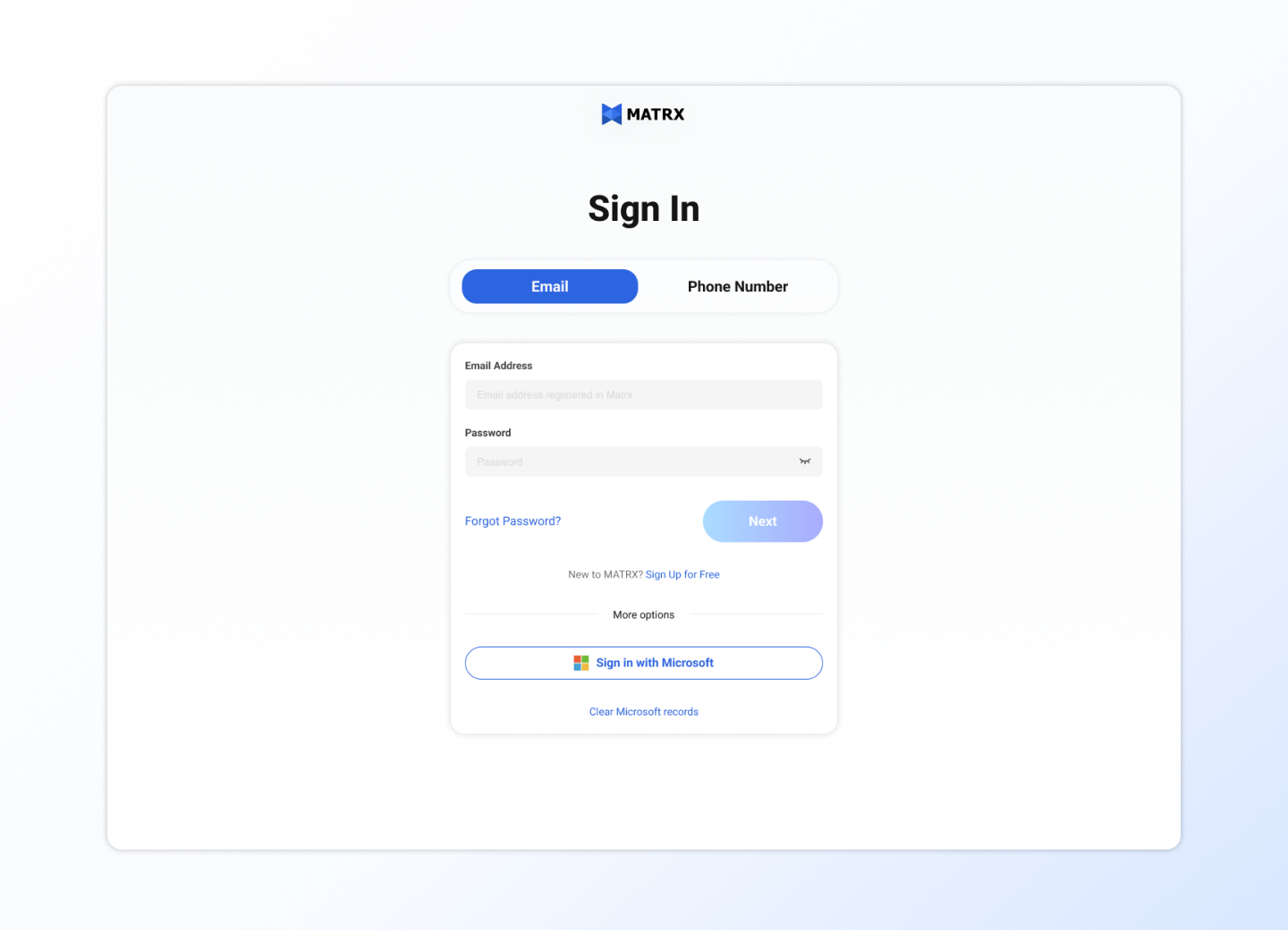
Start Exporing Matrx Admin Portal
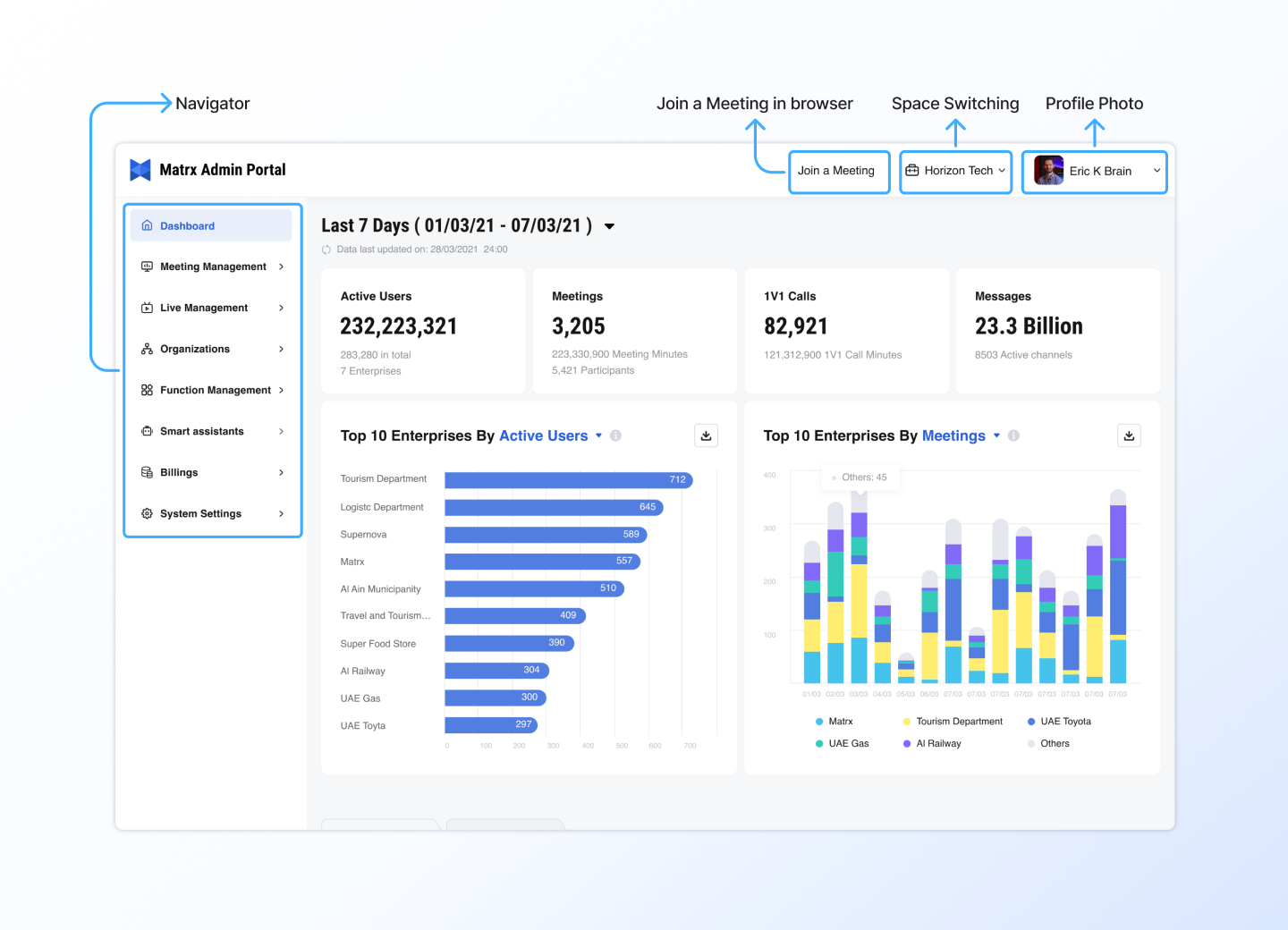
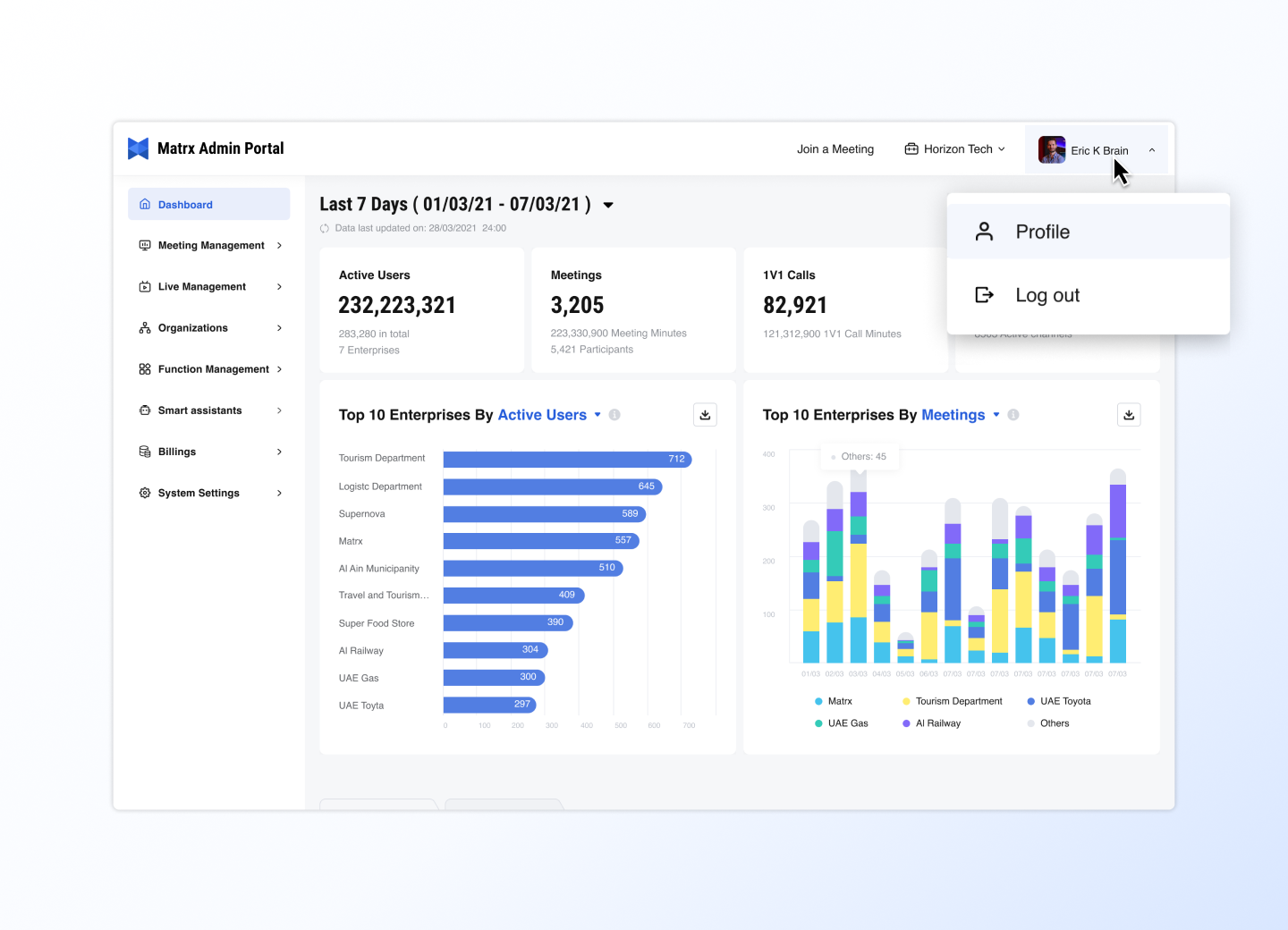
1 Navigator
You can click function entry in the navigation bar to enter the corresponding function interface for management and configuration.
- Dashboard: View data such as users and usage of various services in the enterprise workspace.
- Meeting Management: Schedule meetings for members in the enterprise workspace, manage scheduled meetings, check the quality of meetings, and manage the meeting situation through web meeting control.
- Live Management: You can configure anchors for live broadcasts for the enterprise workspace, create live broadcast rooms, start live broadcasts, etc.
- Organizations: Administrators can manage the organizational structure of the enterprise and manage the member information of the enterprise here.
- Function Management: Administrators can manage whether members in the enterprise can use E2EE meetings, download files, and other functions on the client here.
- Billings: Administrators can view the subscription information and billing information of the enterprise plans here.
- Smart Assistants: Create robots here, edit articles, and send article notifications to members in the enterprise through robots.
- Systems Settings: Here you can configure the administrator permissions of the enterprise background, view the usage log of enterprise users, and configure password update policies and other security configurations
2 Quick Join a Meeting
You can click Join a Meeting on the top bar to quickly join a real-time meeting on the web.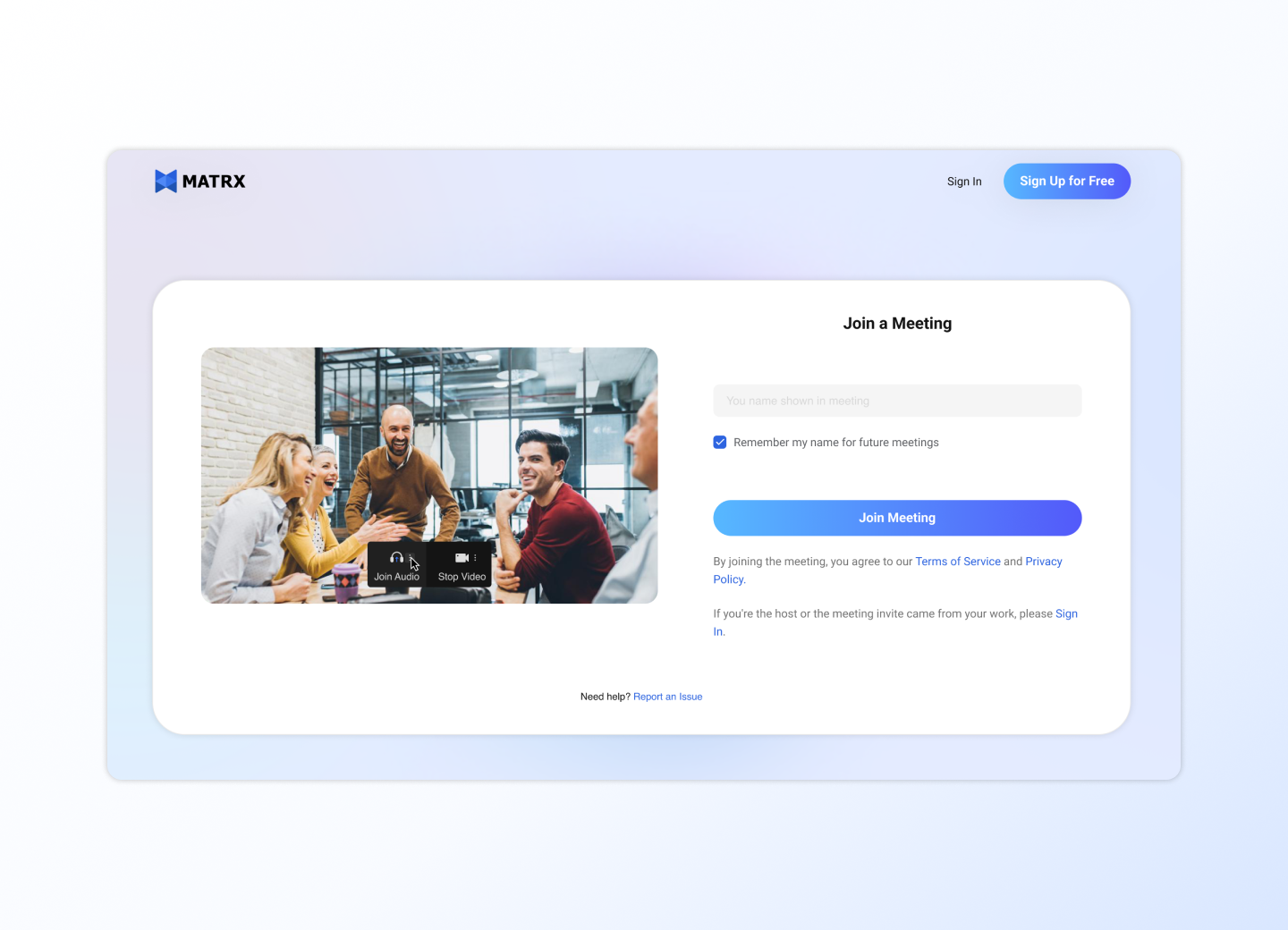
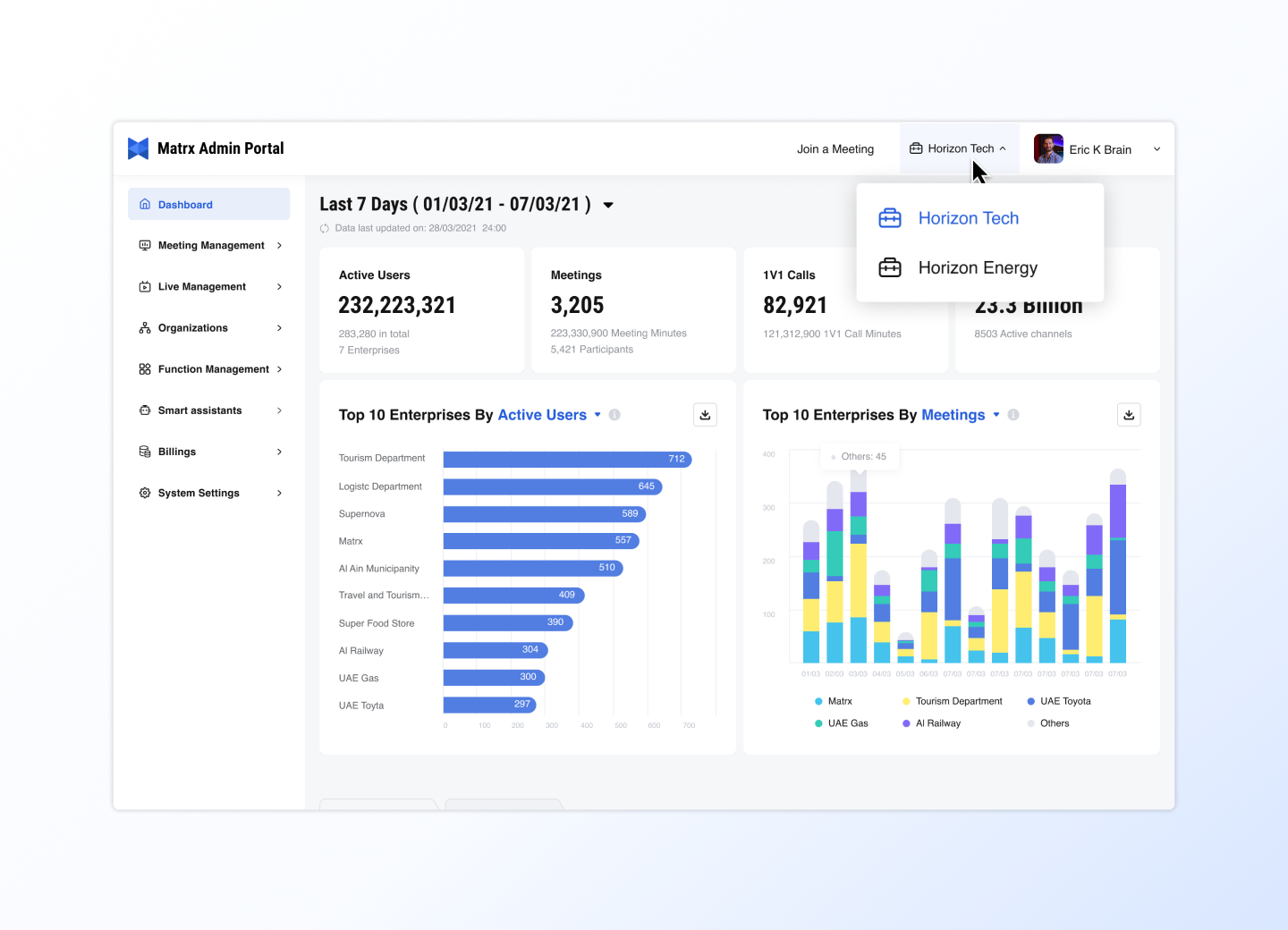
3 Space Switching
If you have joined multiple enterprise workspaces and are the administrator of multiple enterprise workspaces, you can switch enterprise workspaces here to manage different enterprise workspaces.
Tips: In Matrx, enterprises and sub-enterprises are different enterprise spaces.
4 Profile Photo
Click on the profile photo and select in the drop-down menu to
- View & modify personal information
- Log out
Q&A
Why can't my space members see the enterprise workspace in the admin portal?
Viewing the enterprise workspace in Matrx Admin Portal is the administrator's privilege. After a member is invited to join the enterprise workspace, you need to add him as an administrator of the enterprise workspace in Systems Settings, and then he can see the enterprise workspace in Matrx Admin Portal.